The invoice went out three weeks ago. Your client is active in Slack every day, replying to everyone except you.
So you draft a follow-up, second-guess the tone, send it anyway, and wait again. That cycle costs you time you don't have, and money you've already earned.
None of that needs to be manual. If you and your client already talk in a shared Slack channel, you can automate the payment chase there, with tone that escalates from one message to the next. If you don't share a workspace, the same sequence belongs in email, and this page says when each one fits.
Here's exactly how it works.
Try it on yours
Edit the sentence and press Continue. Free for 3 reminders, no card.
When Slack Is the Right Channel for Invoice Reminders
Slack fits one situation well: you and the client already work together in a shared channel, and that is where they answer you. The reminder lands where they already are, next to the work you delivered.
It is the wrong channel when the person who pays is not the person you work with in Slack. Accounts payable teams rarely sit in project channels, and an invoice chase in a channel the whole team can read can embarrass your contact. In those cases, email in the thread the invoice went out in is clearer, keeps a record both sides can find later, and is the channel where autoremind.ai can stop the sequence on its own when the client replies.
If you're still weighing channels, the Slack vs. email reminders breakdown covers the tradeoffs in detail.
The Problem With Manual Follow-Ups
Most freelancers send one follow-up, feel awkward about it, and then wait too long to send another. Here's why that fails.
The awkwardness isn't a personality flaw. It comes from not having a system. When you're writing each message from scratch, you're making a judgment call every single time, how firm is too firm? Is it too soon? Did I already say this? That mental overhead compounds fast.
The result: inconsistent follow-ups, delayed escalation, and clients who learn that silence works.
A structured approach removes the judgment call entirely. You define the sequence once. Messages go out on schedule. Tone shifts automatically based on how many attempts have been made.
That's the entire premise behind automated invoice reminders, and it works because it takes you out of the loop.
The 30-Second Setup: How It Actually Works
No workflow builder. No template library. No conditional logic to untangle. Here's the exact process.
Step 1: Describe Your Reminder in Plain English
Type what you need the way you'd say it out loud.
"Follow up with Obaid for invoice #1042, it is 7 days overdue."
That's it. The AI reads the context, who, what, and why, and writes the message accordingly. A payment reminder gets treated differently from a project approval nudge. You don't need to spell that out.
Step 2: Choose Your Tone Progression
Select how you want the tone to shift across attempts. The default moves from Professional to Firm to Urgent. You can also keep it warm throughout if the situation calls for it.
The AI doesn't just swap in stronger words. It rewrites each message based on the context and the attempt number. The third message about an overdue invoice reads like a third message about an overdue invoice, not a first one with a louder subject line.
Step 3: Set Your Schedule
Choose how far apart the messages go out. A reminder runs at most four messages. On Slack, autoremind.ai does not read your messages, so it cannot see the client's answer: when they reply or pay, you close the reminder. On email it stops by itself when they reply.
That's the full setup. Under 30 seconds.
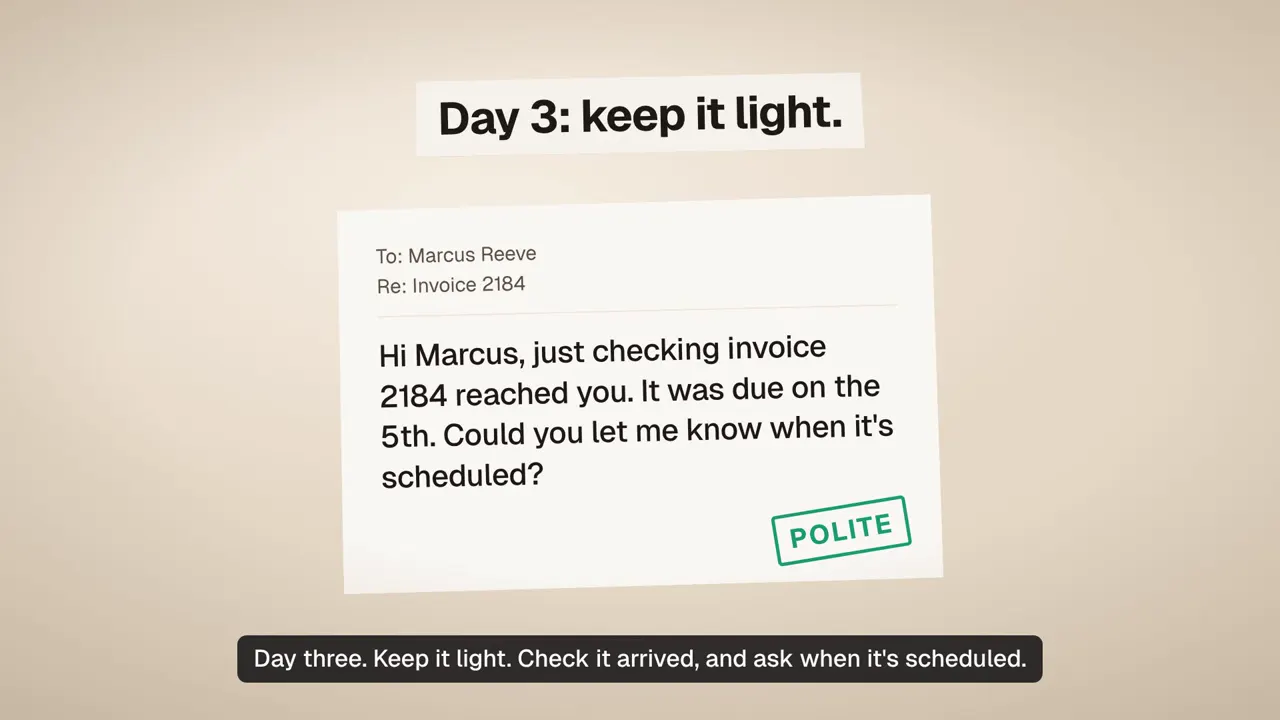
What the Tone Progression Looks Like in Practice
Same invoice. Three different follow-ups. All written automatically.
| Attempt | Tone | Example Message |
|---|---|---|
| 1 | Professional | "Hi, just checking in on invoice #1042 from last week. Let me know if you have any questions." |
| 2 | Firm | "Hey, we haven't heard back about invoice #1042 yet. Can you take a quick look?" |
| 3 | Urgent | "Invoice #1042 is now overdue. We need payment resolved immediately to continue service." |
You didn't write any of those. You described the situation once, and the system handled the rest.
This is what a structured invoice follow-up process looks like when it runs without you.
What You Stay in Control Of
Automation doesn't mean going dark. At any point, you can:
- Pause a sequence if a client reaches out mid-cycle
- Edit the message or timing on an active reminder without resetting it
- Cancel a reminder the moment an invoice gets paid
- Track every message sent, its delivery status, and what's scheduled next from the analytics dashboard
The paper trail stays intact. You always know what went out, when, and what's coming next.
When to Use Slack vs. Email for Invoice Reminders
Use Slack when your client is active there and you share a workspace. Use email when you don't have Slack access, the relationship is more formal, or you need a paper trail that lives outside a messaging app.
The simplest rule: match the channel to how you already communicate with that client. If every project conversation happens on Slack, the invoice follow-up belongs there too.
For a more complete system, the freelancer invoice reminders guide covers timing, tone, and channel strategy in one place. And if your follow-ups have been landing wrong, why follow-up messages fail usually comes down to tone and timing, both covered there in detail.
Get Started
No onboarding call. No workflow to configure. No templates to write.
autoremind.ai connects to Slack, lets you describe your reminder in plain English, and handles the rest, including the tone escalation that most people never get right manually. The free tier includes three active reminders with no credit card and no expiry. Starter adds ten running at once, recurring reminders, auto-tone progression and manual tone customization.
Set it up in 30 seconds. Let it run.
FAQs
Do I need to write the follow-up messages myself? No. Describe the reminder in plain English and the AI writes each message, adjusting tone automatically with every attempt based on the context you provided.
How does the tone escalation work? You choose a progression (for example, Professional -> Firm -> Urgent) when you set up the reminder. The AI rewrites the message for each attempt from scratch. It doesn't add the word "urgent" to the same template, each message reads like it was written specifically for that stage of the follow-up.
Can I stop a reminder sequence once it starts? Yes. Pause, edit, or cancel any active reminder at any time from the dashboard. You can also change the message or timing without starting the sequence over.
Is Slack the only channel supported right now? Slack and Gmail are both live. Email is the main channel and the only one where the sequence stops on its own when the client replies. Outlook is coming; Microsoft Teams is not supported.
What if the client pays before the sequence ends? Cancel the reminder from your dashboard. The sequence stops immediately, nothing else goes out.
How is this different from scheduling a Slack message manually? A manually scheduled message is one message you wrote once. autoremind.ai runs a full sequence, writes each message based on context and attempt number, escalates tone automatically, and tracks delivery. You set it up once and it runs without you.
Is there a free tier of three reminders? Yes. Three live reminders with up to 4 follow-up messages each, recurring reminders, auto-tone progression, manual tone customization, Slack and Email delivery, no credit card required. Start at autoremind.ai.
See also: autoremind.ai, AI invoice reminder tool